
Website Support
 What Is A Zip File?
Although the files we host on this website come in a variety of different file formats what you actually download is a special folder type file known as a zip file.
Many websites use zips for storing and serving downloads because multiple items can be put in a single zip. It also makes the contents smaller so they are faster to download as well as cheaper for us to serve and better for users on capped internet plans because they use less bandwidth.
Do I Need A Zip Program?Whether you are a Windows or a Mac user, your computer already knows how to open a zip file (if it doesn't then get the latest updates for your operating system).
The single advantage of having a special program for managing zip files is it gives you the ability to open multiple zips at once which saves time and effort if you download a lot!

If your computer has any Windows operating system from Windows 98 onwards then you can open zip files like you would a regular folder by double clicking on it. You can select and copy the files inside to anywhere on your computer to install or use them.
The newest versions of Mac OS include zip integration in the Safari web browser so you can skip the unzipping process entirely. This feature is enabled by default so you can just open your Downloads folder and use the files directly.
If you have turned off this feature you can turn it back on again by going to:
Safari > Preferences > General then choose "Open Safe files after downloading"
 Recommended Zip Programs
If you've decided you do want a zip program then there are loads and loads of different options, however there are 2 which I recommend:
Please be aware that the tutorial information below was last updated in 2012 therefore you are likely to find discrepancies.
If you need additional help please use the links provided to get support from the developer's websites as this will carry the most accurate information.
 7Zip (Windows)
To download 7zip go to www.7Zip.org
You'll need to get the right version for your computer and the website is a little bit geeky! The download links are at the top of the home page, but you'll need to know whether your version of Windows is 32 or 64 bit (recent versions are 64bit)
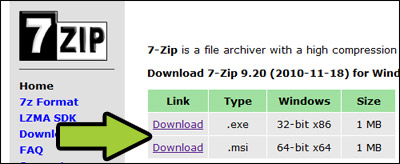
Run the file you downloaded by double-clicking it.
Follow the on-screen instructions to install the program - the default options are suitable for general use such as opening Sims downloads zips
After installing you might want to set up context menus to make using it as neat and easy as possible - this only needs to be done once when you install it. Run the program from the Start menu, or the desktop shortcut created:
Start > All Programs > 7zip > 7zip File Manager
From the menu select:
Tools > Options
On the first tab check the boxes to associate zips, rars and 7zips with 7zip, it doesn't matter if you want to enable others too, but those are the 3 you are most likely to want to use
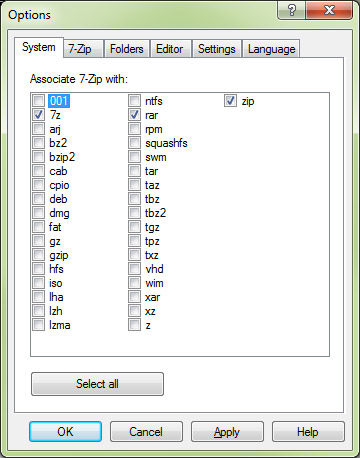
I also like to weed the cascading context menus a little so there aren't lots of options when opening a zip - just the ones I want to use often.
If you want to do this too, then in the Tools > Options page click on the 7Zip tab and uncheck any options you don't want to use - you'll want to keep Extract Here if you want to use the quick method described below. You can change these options any time by simply running the program again and updating the check boxes.
Open the folder your downloaded files are in (see the "How To Download" Topic if you're not sure where your browser puts files you download)
Right click on a single zip, or drag a selection box around multiple zips and then right click to open several at once.
From the cascade menu that pops up, choose Extract Here - this puts everything inside the zip(s) into the same folder.
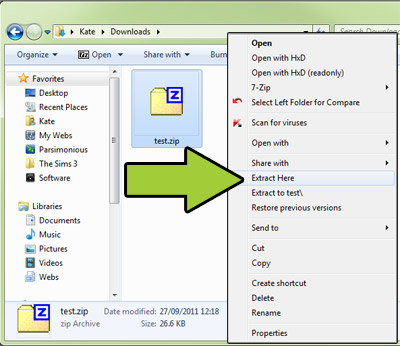
As you can see, I only have Extract Here and Extract to ZipName\ because I tidied up cascading context menus. By default there will be lots of other options which you can disable as noted above to make your menu tidier and therefore quicker to find the right option.
Now your files are unzipped and you can begin installing them according to the instructions by running them with the game installer, recommended installer software or simply putting them in the correct game folder (remember instructions vary by game version AND sometimes by file type, it's important to get the next step right too!).
 Keka (Mac)
To download go to the Keka Home Page - Select the Download Tab then click on the big green Download button
Unfortunately because I don't own a Mac I can't give you detailed instructions for installing this program - but I don't imagine it's difficult! Once the download is complete open your Downloads folder and run the installer file you downloaded and follow the on-screen instructions.
Because this program is based upon 7zip it does everything that 7zip does, it will open the same archive types (including zip, rar and 7z) and you can use the context menus to select multiple archives to extract them into a working folder after which you can then install them into your game as per the instructions provided (see related links below)
What To Do Next?After opening the zips you've downloaded you will then need to add them to your Sims game. How you do this will depend on which version of The Sims you are using (remember that you cannot add files from one version to a different version!). It may also depend on the type of content too, Sims 1 and Sims 2 have different file formats for different items.
Just like opening a zip file, it is simple to do once you have learned the process, but it is important to do it correctly if you want the files to work! Choose the correct topic for your game version from the menu at the top, or from the related links below.
 Home
Home About Parsimonious
 The Sims 1
 SimCity 2013